Articles by "tips"
Showing posts with label tips. Show all posts
Tech Touchz is a Network about Hacker News, Tech News &Tech Hacks - Latest &Tech News, Hacker News and Hacking Tricks About Technology

 WHAT IS NEXT ABOUT COMPUTER?

The computing industry progresses in two mostly independent cycles: financial and product cycles. There has been a lot of handwringing lately about where we are in the financial cycle. Financial markets get a lot of attention. They tend to fluctuate unpredictably and sometimes wildly. The product cycle by comparison gets relatively little attention, even though it is what actually drives the computing industry forward. We can try to understand and predict the product cycle by studying the past and extrapolating into the future.

New computing eras have occurred every 10–15 years

Tech product cycles are mutually reinforcing interactions between platforms and applications. New platforms enable new applications, which in turn make the new platforms more valuable, creating a positive feedback loop. Smaller, offshoot tech cycles happen all the time, but every once in a while — historically, about every 10 to 15 years — major new cycles begin that completely reshape the computing landscape.

Financial and product cycles evolve mostly independently

The PC enabled entrepreneurs to create word processors, spreadsheets, and many other desktop applications. The internet enabled search engines, e-commerce, e-mail and messaging, social networking, SaaS business applications, and many other services. Smartphones enabled mobile messaging, mobile social networking, and on-demand services like ride sharing. Today, we are in the middle of the mobile era. It is likely that many more mobile innovations are still to come.
Each product era can be divided into two phases: 1) the gestation phase, when the new platform is first introduced but is expensive, incomplete, and/or difficult to use, 2) the growth phase, when a new product comes along that solves those problems, kicking off a period of exponential growth.
The Apple II was released in 1977 (and the Altair in 1975), but it was the release of the IBM PC in 1981 that kicked off the PC growth phase PC sales per year (thousands)
The internet’s gestation phase took place in the 80s and early 90s when it was mostly a text-based tool used by academia and government. The release of the Mosaic web browser in 1993 started the growth phase, which has continued ever since.

Worldwide internet users

There were feature phones in the 90s and early smartphones like the Sidekick and Blackberry in the early 2000s, but the smartphone growth phase really started in 2007–8 with the release of the iPhone and then Android. Smartphone adoption has since exploded: about 2B people have smartphones today. By 2020, 80% of the global population will have one.

Worldwide smartphone sales per year (millions)
If the 10–15 year pattern repeats itself, the next computing era should enter its growth phase in the next few years. In that scenario, we should already be in the gestation phase. There are a number of important trends in both hardware and software that give us a glimpse into what the next era of computing might be. Here I talk about those trends and then make some suggestions about what the future might look like.
Hardware: small, cheap, and ubiquitous
In the mainframe era, only large organizations could afford a computer. Minicomputers were affordable by smaller organization, PCs by homes and offices, and smartphones by individuals.

Computers are getting steadily smaller

We are now entering an era in which processors and sensors are getting so small and cheap that there will be many more computers than there are people.
There are two reasons for this. One is the steady progress of the semiconductor industry over the past 50 years (Moore’s law). The second is what Chris Anderson calls “the peace dividend of the smartphone war”: the runaway success of smartphones led to massive investments in processors and sensors. If you disassemble a modern drone, VR headset, or IoT devices, you’ll find mostly smartphone components.
In the modern semiconductor era, the focus has shifted from standalone CPUs to bundles of specialized chips known as systems-on-a-chip Computer prices have been steadily dropping
Typical systems-on-a-chip bundle energy-efficient ARM CPUs plus specialized chips for graphics processing, communications, power management, video processing, and more.


1 GHz Linux computer for $5

This new architecture has dropped the price of basic computing systems from about $100 to about $10. The Raspberry Pi Zero is a 1 GHz Linux computer that you can buy for $5. For a similar price you can buy a wifi-enabled microcontroller that runs a version of Python. Soon these chips will cost less than a dollar. It will be cost-effective to embed a computer in almost anything.
Meanwhile, there are still impressive performance improvements happening in high-end processors. Of particular importance are GPUs (graphics processors), the best of which are made by Nvidia. GPUs are useful not only for traditional graphics processing, but also for machine learning algorithms and virtual/augmented reality devices. Nvidia’s roadmap promises significant performance improvements in the coming years.

Google’s quantum computer

A wildcard technology is quantum computing, which today exists mostly in laboratories but if made commercially viable could lead to orders-of-magnitude performance improvements for certain classes of algorithms in fields like biology and artificial intelligence.
Software: the golden age of AI
There are many exciting things happening in software today. Distributed systems is one good example. As the number of devices has grown exponentially, it has become increasingly important to 1) parallelize tasks across multiple machines 2) communicate and coordinate among devices. Interesting distributed systems technologies include systems like Hadoop and Spark for parallelizing big data problems, and Bitcoin/blockchain for securing data and assets.
But perhaps the most exciting software breakthroughs are happening in artificial intelligence (AI). AI has a long history of hype and disappointment. Alan Turing himself predicted that machines would be able to successfully imitate humans by the year 2000. However, there are good reasons to think that AI might now finally be entering a golden age.
“Machine learning is a core, transformative way by which we’re rethinking everything we’re doing good. Google CEO, Sundar Pichai
A lot of the excitement in AI has focused on deep learning, a machine learning technique that was popularized by a now famous 2012 Google project that used a giant cluster of computers to learn to identify cats in YouTube videos. Deep learning is a descendent of neural networks, a technology that dates back to the 1940s. It was brought back to life by a combination of factors, including new algorithms, cheap parallel computation, and the widespread availability of large data sets.

ImageNet challenge error rates (red line = human performance)

It’s tempting to dismiss deep learning as another Silicon Valley buzzword. The excitement, however, is supported by impressive theoretical and real-world results. For example, the error rates for the winners of the ImageNet challenge — a popular machine vision contest — were in the 20–30% range prior to the use of deep learning. Using deep learning, the accuracy of the winning algorithms has steadily improved, and in 2015 surpassed human performance.
Many of the papers, data sets, and software tools related to deep learning have been open sourced. This has had a democratizing effect, allowing individuals and small organizations to build powerful applications. WhatsApp was able to build a global messaging system that served 900M users with just 50 engineers, compared to the thousands of engineers that were needed for prior generations of messaging systems. This “WhatsApp effect” is now happening in AI. Software tools like Theano and TensorFlow, combined with cloud data centers for training, and inexpensive GPUs for deployment, allow small teams of engineers to build state-of-the-art AI systems.
For example, here a solo programmer working on a side project used TensorFlow to colorize black-and-white photos:
Tech Touchz is a Network about Hacker News, Tech News &Tech Hacks - Latest &Tech News, Hacker News and Hacking Tricks About Technology
Windows 10 has gotten its first official update with new features, and it is free for everyone who had already upgraded their Windows. Microsoft had said, during the launch of the OS that Windows 10 will be the “last” Windows, this means that instead of OS overhaul with different version names (Windows 7, 8 etc) after a specific life cycle, there will be one Windows with periodic updates.

10 important features
10 important features in the Windows 10 Anniversary Update

The Windows 10 Anniversary Update acquired its name from the OS' one-year anniversary (August 2).


The Anniversary Update is free for all Windows 10 users (Windows 7 and 8/8.1 users had until July 29 to upgrade to Windows 10 for free - see details here) and includes everything from visual tweaks and security improvements to brand-new features such as Windows Ink.


Here are some of the new features you should expect when your device gets the update.


1. A Slightly Different Start menu


The first thing you'll notice in the Anniversary Update is the Start menu...it's different. There's no longer an "All apps" menu. Instead, all of your installed apps appear in a list on the left side of the Start menu. To the left of this list, you'll see icons for your account, downloads, File Explorer, Settings and Power. To the right of this list you'll see the tiles and live tiles.


2. A More Compact taskbar


The Windows 10 taskbar gets some cool tweaks in the Anniversary Update, including prettier right-click menus and a dedicated section in the Settings menu.
You'll find it under Personalization > Taskbar.

Windows-Anniversary-taskbar

The taskbar clock and calendar are now combined; click the clock and you'll see the time and a list of your day's events. And if you have multiple displays set up, the clock now appears on all of them.

3. Edge extensions


Microsoft's new Edge browser will finally get support for browser extensions. Edge never wanted to support third-party extension due to security risks -- despite the fact that most other modern browsers, including Chrome, Firefox and Safari, support them.

A handful of third-party Edge extensions including AdBlock, the Pinterest Pin It Button and Evernote will be available at launch, hopefully with more to come. Extensions will be available through the Windows Store.

Other Edge improvements includes:


  • The ability to pin tabs in the browser
  • A paste-and-go option for the address bar
  • A history menu that can be accessed by right-clicking the back or forward button
  • The ability to drag-and-drop folders to cloud storage services
  • Improved organization of bookmarks and favorites
  • In-progress download reminders when you close the browser
  • Web notifications from websites in your Action Center
  • Swipe navigation
  • Click-to-play Flash video (videos will not play automatically)

Windows-Anniversary-edge-extensions


4. Windows Ink


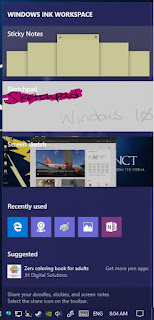
Windows 10 will get more pen and stylus friendly with Windows Ink, a new pen-centric experience that lets you use your active stylus throughout the operating system. Windows Ink comes with its own special workspace, which you can access through an icon in the system tray.

There's also a handful of new apps, including a screen sketch app that lets you scribble on screenshots in a manner similar to Microsoft Edge's Inking feature. Ink will also be integrated into existing apps, and key apps will have special features such as being able to draw custom routes in the Maps app.

Windows-Anniversary-ink

Stylus users will be able to customize their pen's buttons and settings from the Devices tab of the Settings menu.


5. Cortana on the lock screen


Cortana will make a small -- but convenient -- move to the lock screen. Once this feature is enabled, you'll be able to access Cortana by saying "Hello, Cortana" or by tapping the Cortana icon on the lock screen. Microsoft's digital assistant will be able to perform a variety of tasks from the lock screen, such as looking up directions, scheduling appointments or creating reminders.

Windows-Anniversary-cortana

The Windows 10 lock screen gets a few additional improvements, including the ability to hide your email address if you sign in with a Microsoft account. You can turn this feature on by going to Settings > Accounts > Sign-in options and scrolling down to Privacy.


6. Windows Hello for apps and websites


Windows Hello already lets you sign into your computer using facial recognition, a fingerprint or an iris scan. In the Anniversary Update, Windows Hello will be available on supported websites as long as you're browsing with Edge -- the first browser to offer native support biometrics. It'll also work on Windows apps. In short, you'll soon be able to sign into websites with your face.

Windows Hello will also let you sign into your PC using a "companion device," such as a USB security token, an activity tracking band or a smartphone.

7. Xbox Play Anywhere


Xbox Play Anywhere will bring universal gaming to Xbox and Windows 10 devices. Xbox Play Anywhere is limited to upcoming titles, but games purchased on the Xbox will be playable on Windows 10 PCs and vice versa. You'll also be able to move seamlessly between devices -- you can start playing a game on your Xbox One and pick it up later on your PC.


8. An improved Windows Defender


If you install a third-party antivirus program in Windows 10, Windows Defender automatically disables itself. But thanks to a new feature called Limited Periodic Scanning, Windows Defender can now act as an "additional line of defense" to your existing antivirus program. When Limited Periodic Scanning is turned on, Windows Defender will turn itself on to scan your PC periodically (and send you a summary of its findings when the scan is complete) without interfering with your existing antivirus program.

For enterprise users, the Anniversary Update will bring Windows Defender Advanced Threat Protection, stopping advanced malicious attacks on networks and Windows Information Protection, which is itself designed to help protect corporate data.

9. Android Notifications in your Action Center


The Cortana app for Android will be able to connect your Android device with your Windows 10 PC for super convenient "universal" notifications. Once connected, Cortana will be able to do things like mirror your Android notifications in the Windows 10 Action Center and remotely locate and ring your phone from your PC. You'll also be able to receive text messages from your phone on your PC.

Windows-Anniversary-android-notification


10. A dark theme


Windows 10 is all white, all the time. But soon you'll be able to pick a much more eye-friendly dark theme for default Windows apps such as the Settings menu, the Maps app and the Calculator app. In the Personalization tab of the Settings menu, you can now pick one of two app modes: Light (default) or Dark.

Windows-Anniversary-dark-theme


The Dark mode features a black background, dark gray scrollbars and white text, and it affects most default Windows 10 apps, excluding the File Explorer.

Source: cnet.com
Tech Touchz is a Network about Hacker News, Tech News &Tech Hacks - Latest &Tech News, Hacker News and Hacking Tricks About Technology
Do you know why is the keyboard not arranged in alphabetical order?

Check out why keyboard is not arranged in alphabetical order

We use keyboard every day, be it our desktop, or laptop, or tablet or smartphone. But have you ever wondered as to why the keyboard is not arranged in alphabetical order?

The reason goes back to the time of manual typewriters. These typewriters in earlier days did have the keys arranged in alphabetical order. However, it was later discovered that the people typed so fast that the mechanical character keys got jammed very easily with this arrangement.

To prevent this, the keys were randomly positioned so that the weaker fingers were needed more frequently. This meant that people typed at a speed which the machine could handle. As a result, the ‘QWERTY’ keyboard came into existence that we find and use today.

The QWERTY keyboard layout was devised and created in the 1860s by the creator of the first modern typewriter, Christopher Sholes, a newspaper editor who lived in Milwaukee. Originally, the characters on the typewriters he invented were arranged alphabetically, set on the end of a metal bar which struck the paper when its key was pressed. However, once an operator had learned to type at speed, the bars attached to letters that lay close together on the keyboard became entangled with one another, compelling the typist to manually unstick the typebars, and also regularly blotting the document. A business associate of Sholes, James Densmore, suggested splitting up keys for letters commonly used together to speed up typing by preventing common pairs of typebars from striking the platen at the same time and sticking together.

There are varied opinions on this rearrangement of letters in the keyboard. The logic of the QWERTY layout was based on letter usage in English rather than positioning of letter in the alphabet. However, some sources assert that the QWERTY layout was designed to slow down typing speed to further reduce jamming. Also, the QWERTY keyboards were made so one could type using keys from the top row of the keyboard. On the other hand, there are sources who assert the rearrangement worked by separating common sequences of letters in English. Apparently, the hammers that were likely to be used in quick succession were less likely to hinder with each other. This random arrangement eventually became standard in computers later followed by the devices made after that.
Tech Touchz is a Network about Hacker News, Tech News &Tech Hacks - Latest &Tech News, Hacker News and Hacking Tricks About Technology
 Cylinder At The End Of Your Charger
Do You Know Why There Is a Cylinder At The End Of Your Charger?

What Is This Cylinder On Your Charger For?

While my laptop charger has never bugged me, but I always felt strange at times to see a bump in my laptop charger right after it connects to the laptop. I always use to wonder why the charger has a bump and what purpose does it serve?

You normally see these “bumps” on the mouse, keyboard and monitor cables in a typical computer system found in a home or office. You can also find them on power supply wires when a device (like a printer or scanner) uses an external transformer.

It turns out that these bumps are called ferrite bead. It may also be called blocks, core, rings, EMI (electromagnetic interference) filters, or chokes. A ferrite bead has the property of eliminating broadcast signals and prevents energy loss of the same type within the charger. This makes the charger much more effective and helps charge your computer more quickly. Their purpose is to reduce EMI and RFI (radio-frequency interference). These cylinders are responsible for stopping very large deviation of power over supply through the cable and power surges in currents that pass through the cable and prevent ‘choke’ within the wire to make it any further supply the current to the device. The blocking is most effective when it is near the source of the EMI, that’s why you will only find these ferrite beads near the end of the cables.

It also acts as a choke or inductor that blocks high frequency noise in electronic circuits. Ferrite bead employs the dissipation of high frequency currents in a ferrite ceramic to build high frequency noise suppression devices.

The bead is made up of ceramic compounds, derived from iron oxide and/or oxides of other transition metals. It helps to prevent the wire behave on over floating current like aerials. It slips over the cable when the cable is made, or it can be snapped around the cable in two pieces after the cable is made. The bead is encased in plastic — if you cut the plastic, all that you would find inside is a black metal cylinder. This metal wire can possibly serve as an antenna by absorbing or releasing any radiation while passing current around it.

The radiation released by the wires without the bead could cause interference with other electronic objects around them, which act as receivers of this radiation, for instance, causing noise in speakers. This phenomenon’s example can be seen when cell phones interfere with the signal devices such as radios and speakers, producing a recurring noise well known for electronic users.

Source: The Amazing Fact
Tech Touchz is a Network about Hacker News, Tech News &Tech Hacks - Latest &Tech News, Hacker News and Hacking Tricks About Technology

Finally, Now You Can Play Pokemon Go On Windows 10 Mobile

Pokemon go
Now You Can Play Pokemon Go On Windows 10 Mobile
As we all know that the Pokemon Go is a location-based augmented reality game developed and published by Niantic. Pokemon Go crazily stormed the planet and now there are very few countries and the operating systems are just left to have this game, and among them, Windows platform is the one.

Windows 10 Mobile was the platform where the Pokémon Go was not yet available, but now you can install and play Pokemon Go on Windows 10 Mobile. But all thanks to an Open Source client, which made it possible for all the Windows Phone users to play Pokemon Go on Windows 10 Mobile.

See how you can finally have the Pokémon Go on your Windows 10 Mobile.


The PoGo-UWP, as it is not the official application of Niantic but already gives the possibility for users of Windows 10 Mobile to have the Pokémon Go on their smartphones. This is an open source client which is accessible to all.

The PoGo-UWP is not yet officially completed and published in the Windows application store, so, for now it requires users to install manually. If you still want to help to test the app and contribute to development, then you will need to follow few advanced steps, but don’t get worried about the advance steps, as the steps are not as advance that you might be thinking.

So let’s get started:-


  • Login via the official Android or iOS client or simply you can also use the Bluestacks app player directly on your PC.
  • Then select a starting Pokemon and log out from the official app by tapping on the Pokeball icon.
  • If you are on Bluestacks without a GPS signal then just close the app by pressing the ‘X’ icon.
  • Now you have to download all these Github files to a PC connected to the same Wi-Fi network as your Windows 10 Mobile and have to place them in the same folder. (Here is the files 1st – 2nd – 3rd)
  • Now enable developer features and to do this just go to Settings and search “For developers”.
  • Then simply enable the “Developer mode, Device discovery, and Device Portal”.
  • Now on the bottom of the “Device Portal” settings, you will see an IP address, just navigate to that IP address on the PC containing the Github files.
  • Then just click on the Apps section on the Device Portal in your PC browser and add the file “PokemonGo-UWP_1.0.3.0_ARM_Debug.appx” under Install App.
  • Then Add package and add other two files as dependencies.
  • Now just click on the Go button under the Deploy.
  • Here you are done, so now just launch the PoGo-UWP on your Windows phone and login with the account which you set up earlier.

Here is the video tutorial to setup Pokemon Go on your Windows 10 Mobile:-


Tech Touchz is a Network about Hacker News, Tech News &Tech Hacks - Latest &Tech News, Hacker News and Hacking Tricks About Technology

Here are the best and easy ways that you can implement in your Mozilla firefox browser to make it perform better and speed up the browsing in it with the guide that we discussed right below.

speed up
Easy Ways to Speed Up Firefox in Less than 10 Minutes

Similar to other browsers, Firefox’s speed is also degrading day by day with wear and tear. With time you must judge that it takes one more second or minute to upload your required page. In addition to this, you must not be satisfied with the current speed it provides to you. If you want faster Firefox experience, look towards the given easy ways. As the techniques that we are going to discuss right in article will help you to boost up your browser speed to get the better browsing experience. So have a look on complete guide discussed below to proceed.

Here we have discussed some implementations that you need to perform in order to speed up your browser.

Easy Ways to Speed Up Firefox in Less than 10 Minutes

1. Click-To-Play Flash Content

The very first thing I noticed and went through, when I start using a new browser is to disable Flash content or set it to “click-to-play“. Most of the websites use Adobe Flash Player to load videos and other contents such as ads. This consumes lot of your time even if you didn’t want to see any flash content. When it is set to “click-to-play“, flash content will only be loaded when you click on it.
To set flash content to “click-to-play” in Firefox:
1. In the top right corner, Click on the Firefox main menu and then click on “Add-ons.”
2. On the add-ons page, click on the “Plugins” button on the left side and search for “Shockwave Flash” plugin.
3. Click on the drop-down menu next to it, and select “Ask to Activate.” You can also completely disable flash if you don’t use it at all.


2. Free up Memory

If you prefer to use Firefox and continuously use it and in some way you find it slowing down, then to speed up its free memory,  type about:memory in the firefox address bar and press Enter. Pursue on the next page and click on “Minimize memory usage” under “Free memory” to free up memory.


3. Disable Firefox Animations

To speed up a Windows PC by disabling animations, you can speed up Firefox by disabling its animations. To disable animations in Firefox, type about:config in the Firefox address bar and press Enter. Type “animate” in the search box and set its values to all entries that leads to “False“.

4. Use Add-ons to Speed up Firefox

Similarly to the chrome, there are lots of add-ons available for Firefox that helps in speeding up Firefox experience. Best ones are defined below:

  • Auto Unload Tab: This add-on will automatically unload idle tabs and will free up all the resources that are taken upon and helps in easily loading when needed.
  • Image Block: This will block all the images on websites leading to faster browsing by which less data will need to be downloaded.
  • Speed Tweaks: This extension can make all the tweaks we have done above in the about:config page and some additional ones thus increasing speed. You can also do all this manually, but this extension makes it a one-click process.


Also Read: How To Speed Up Google  Chrome

5. Enable Firefox Pipelining

This is just a little hack that lets Firefox to create multiple connections with a server instead of one for speeding up the loaded page. To enable pipelining, enter about:config in the Firefox address bar and press Enter. Search for the below defined entries and change their status to what is mentioned below:
network.http.pipelining -> true
network.http.pipelining.aggressive -> true
Network.http.pipelining.maxrequests -> 8
Network.http.pipelining.ssl -> true
To find all of the options, type network.http.pipelining in the search bar and then double click on the value to each entry for changing it.


6. Refresh Firefox

If above mentioned tweaks didn’t work or it is acing up due to continuous use then refreshing firefox is the best fix. Firefox lets you to refresh it and change all its settings by default and remove all the unwanted and third party data. Type about:support in the Firefox address bar and press Enter. Click on the “Refresh Firefox” button on the right and confirm the prompt to refresh it.


7. Disabling Add-Ons

There are lots of add-ons that can make your browser slow with time, so it is recommended to remove them if you think that they are of no use to you and for this you can head towards “about:addons-memory 2016.” extension and then install this extension and visit the page “about:addons-memory”, and you will see all the installed add-ons and the resources each one is using and you can disable or uninstall them accordingly.


8. Removing Adwares From Firefox

Adware are the extensions that gets installed in your system due to certain factors and they generate ads on your browser and also slow downs your browser speed. So it is better to remove them as soon as possible and for this is the best choice that will remove all these adwares from your browser and make it faster.


So above discussion is all about Easy Ways to Speed Up Firefox in Less than 10 Minutes. By using this guide, you can easily remove all the crap from your browser and make it faster to browse different sites. So implement these today. hope you like the guide, keep on sharing with others too. Leave a comment below if you have any related queries with this.
Tech Touchz is a Network about Hacker News, Tech News &Tech Hacks - Latest &Tech News, Hacker News and Hacking Tricks About Technology

Here is the look at the best hosting solution that suits your business

Best Hosting Solution for your business

Web hosting comes in many standard and customized packages with different combinations of bandwidth, price, features and ad-ons. It can be very challenging for even a pro to choose the right solution. Therefore, the best way to select a suitable hosting package is by understanding the exact server requirement of your business and website.

The second most important thing you need is to set aside the maximum budget possible for these services. This would simplify the process of choosing the right kind of web hosting solution for your business.

If you do not exactly understand what all services you get in a web hosting solution? The answer is very simple! A web hosting service mainly allows you to make your website accessible via the World Wide Web. In order to do so, you get limited/unlimited disk space, along with some free Email accounts, Web site builders and marketing tools, and sometimes podcast and blogging tools. Usually the basic packages are offered for 1 year duration, which you need to renew each year.

Types of hosting servers


There are 4 types of servers that include Shared, Dedicated, Cloud and VPS.


Shared web hosting


It is the best suggestive measures who are running short of budget as you are not paying the cost solely. You are sharing it with other owners. Here you share the different software applications and physical server provided by web hosting services with others. The biggest drawback faced by the user is the slowest speed as huge numbers (above 1 thousand) of users are put to single server. Almost 3,000 sites use it. It may happen that a part of the users are utilizing maximum space of the server by having huge visitors and the remaining users are left with too little and such bad neighbors actually declares the idea of shared hosting as a bad one. Get your server shifted if you are facing any such issues. If you are having a test site or website without expecting uptime then this kind of hosting could be used. People with low budget find it too useful as in their tight budget they are in a position to prove their presence to the world.


Dedicated hosting


It is recommended for those sites that are expecting to have one million or more visitors in a month. You can avoid all bad neighbors as you are using it alone. The performance speed is extremely high in this hosting but yes it comes with huge cost that you need to pay on your own. You may select the kind of memory you want, OS, hardware elements and other customization as per your requirement through it. You get the feature of flexibility here. It is advisable for those who possess great knowledge about server technology as they need to handle everything on their own.

One of the most popular dedicated hosted server is Gmod server, offered by many hosts like gmod.eu, elpishost.com, elpishost.com and more. In order to find the best gmod server, it is always recommended to do some in-depth research on Google or Yahoo!, read reviews of their old clients before spending your money.


Cloud hosting


It permits you to use the multiple servers’ resources in single network and turns it highly scalable. It is very secured hosting service. It acts like a protection guard against DDOS attack. It has become the choice of mass and users are shifting from VPS to cloud hosting services for better service.

VPS


Virtual Private Sector is one of the upgraded web hosting services which is shared differently. It is restricted to be shared among 10-20 users and is highly flexible. It is scalable and configurable. It is more cheaper and strong server.

Selecting the right web hosting service is a tough go but you are just required to choose the best option for you. There are several companies that are offering you with these services; you are just required to have an inner look into it to understand what suits you most!
Tech Touchz is a Network about Hacker News, Tech News &Tech Hacks - Latest &Tech News, Hacker News and Hacking Tricks About Technology
RazerGo: The Chat Platform For Pokemon Go Players

RazerGo: The Chat Platform For Pokemon Go Players

The game Pokemon Go succeeded just in a few days and achieved a lot of popularity worldwide. As the concept of the game is very interesting and joining the mobile devices along with the augmented reality, hence, the success was immediate.

Now the question arises here that does the Pokemon Go function as a communication platform? The answer is yes, thanks to the RazerGo app. So, if you go out for hunting with Pokémon Go, take the advantage and talk with other users within your range of motion with the app RazerGo.

This mobile app RazerGo will soon come to the popular platforms like iOS and Android, as it promises communication between the pokémon coaches who are within a radius of between 5 and 1,000 kilometers, says the Razer in a statement, the company behind the RazerGo app.

You can easily configure communication between “whisper”, “team” and “public”, depending on the type of communication that you want. Even you can also turn RazerGo that will only show you people with your same team color.

For now, while waiting for the application for iOS and Android reach to the stores, you can use the Web version of the service or app RazerGo. Razer, the company behind the app RazerGo, start a Guided walks Pokecrawls on Wednesday. These walks are to just to bring several Pokemon coaches together. Hence, the walks begin in the RazerStore, where all the Participants will receive discounts, gifts, and promotional coupons in the store.


Before the fever, Pokemon Go, which has generated big revenue for Nintendo, high rates of use outweigh Twitter or Tinder in the US, and even a budding application to link to the game, it was a matter of time before the rise a messaging app between the Pokemon Go users or players.

Tech Touchz is a Network about Hacker News, Tech News &Tech Hacks - Latest &Tech News, Hacker News and Hacking Tricks About Technology

Speed up Microsoft Edge by enabling TCP Fast Open

Speed up Microsoft Edge

Edge, which was introduced with Microsoft’s new operating system, Windows 10 last July has not only managed to surpass many of its rivals but it also works 40% faster in some scenarios. Thanks to an experimental feature in Microsoft Edge known as TCP Fast Open.

TCP Fast Open is a new feature of Microsoft Edge that speeds up the web browser’s page loading time by over 10% on average, and in some cases up to 40%. TCP Fast Open is an extension of the TCP protocol that enables data exchange during TCP’s initial handshake. Currently, the feature is only available in preview versions of Microsoft Edge available on Fast and Slow Ring Insider Builds. However, it seems likely that Microsoft will make available the feature in next month’s Anniversary Update for Windows 10.

The users when surfing the web may notice significant speed improvements, only if the client and the web server at the other end support TCP Fast Open. It is likely that web server compatibility will improve in the near future as both Microsoft and Apple support the feature now (Google on Linux and Android).

While mobile versions of Chrome support the feature on Android, TCP Fast Open for the desktop was introduced by Microsoft only last month. The feature showed up in one of the Insider Preview builds that rolled out, but it has been disabled by default so far.

TCP Fast Open allows the client to start sending data to the server much faster than before, because the client no longer waits for a full handshake to occur. In other words, the client browser, in this case Edge, can cut off hundreds of milliseconds of loading times. In short, the less latency you can have between two far away systems that are trying to connect, the faster the load times.

TCP Fast Open, as mentioned above, is only available in Insider Preview builds of Microsoft Edge, and it’s turned off by default. So, here’s how to turn it on:

• Open the Edge browser
• Go to the three dot pane and click on Settings
• Check if you have EdgeHTML 14.14361 or higher at the bottom of the page
• Click on the address bar and type about:flags and hit Enter
• Under Networking, click on Enable TCP Fast Open
• Restart Edge

It’s important to note that you may not notice any speed improvements on some pages. Of course, like all experimental features, there could be some issues. If you run into any problems, you can just turn it back off again by following the same above directions. In the worst case scenario, just select Reset all flags to default in case you start tinkering with other options.

For the ones, who are not on Insider builds, do not worry. Once the TLS 1.3 protocol gets finalized this summer, Microsoft is determined to bring TCP Fast Open to everyone and enhance loading speeds.
Tech Touchz is a Network about Hacker News, Tech News &Tech Hacks - Latest &Tech News, Hacker News and Hacking Tricks About Technology

These 11 Ways Will Help You To Speed Up Chrome

Speed Up Google Chrome
Google Chrome is one of the most popular and streamlined web browsers in the world. However, despite of all the feature updates and bug-fixes, Chrome can be slow at times. The reason could be due to some of its features, extensions or applications.

However, the good news is that it is still possible to greatly improve your browser’s overall speed and sensitivity just by using some several tips, tricks and hacks.

In this article, we bring to you 11 ways to help you to speed up your Chrome. By following these, not only will it improve Chrome’s page loading but also it’s browsing speeds. In order to allow the browser to load web pages faster, these tips and tricks disable various unnecessary and unneeded features of Chrome, which include extensions, plugins and web apps that you don’t need.


1. Disable Avoidable Extensions


While extensions are considered as helpful tools that prolong the functionality of the Chrome browser, yet some may actually be less helpful than one might think. Extensions mostly run in the background, and parse or filter web pages before they are displayed on the screen, but will also load their own pack of data from the Internet.


To get better browsing speeds and good response times, disable and/or delete extensions you don’t actually need.

To disable extensions:

1. Type “chrome://extensions” in your Chrome’s location bar. Otherwise, you can go to Chrome’s Options > More tools > Extensions.

2. Untick the Enabled to the extensions you want to disable, or click the Trash icon to delete the extension.


2. Disable Unnecessary Plugins


Similar to extensions, plugins offer extended functionalities to the browser. Chrome comes with few built-in plugins provided by Google (like Chrome PDF Viewer, Native Client, etc.), and may carry plugins by other software installed in your computer. Like extensions, plugins can slow down the browser and block memory and network resources.

To disable plugins:

1. Type “chrome://plugins” in your Chrome’s address bar.

2. Click Disable to disable the plugin you no longer need.


3. Remove Excessive Web Apps


Besides being a web browser, Google Chrome is also an application platform for web apps. It can run locally-installed web apps written using HTML5, CSS, and JavaScript. While web apps don’t load resources like websites do, if you don’t need them, remove them.

To remove unnecessary web apps:

1. Type “chrome://apps” in your Chrome’s address bar or click Apps on the Bookmarks bar.

2. Right-click the app you want to remove, select Remove from Chrome…, and click the Remove button to confirm the removal.


4. Enable Prefetch Resources


Google Chrome comes with many smart features such as network prediction, resource preloader, spelling correction, etc. Resource pre-fetcher or preloader offers intellectual suggestions about the pages or links the user is most probably to open next, loading those pages/links in the background before you actually open them.

To enable the prefetch feature in Chrome browser:

1. Head over to Chrome’s Options > Settings > Show advanced settings…

2. Check the “Prefetch resources to load pages more quickly” option.

Enable Secret Hacks

There are several secret and experimental features that Google Chrome has under its cloak. These are experiments by the Chrome’s developer team – some may not be built for beginners, some may not work for some devices, and some may not be good for your computer too.

However, luckily enough there are some experiments that are handy enough to enhance the browser’s page-loading and rendering engines.

Again, some of them may not work for some devices, and if you find yourself in a situation like this, just undo the hack to go back to normal.


5. Experimental Canvas Features


Experimental Canvas Features allow the Chrome to make use of opaque canvases to increase the loading times and improve performance.

To enable experimental canvas features:

1. Go to “chrome://flags/#enable-experimental-canvas-features.

2. Click on Enable and then Relaunch Now button.


6. Fast Tab/Window Close


The Fast Tab/Window Close option escalates the response time of the browser when a user tries to close tabs or windows. Enabling this feature runs a tab’s onUnload.js handler autonomously of the graphical interface and speeds up the closing process.

To enable fast tab/window close feature:

1. Type “chrome://flags/#enable-fast-unload” in the address bar.

2. Click on Enable and then Relaunch Now button.


7. Scroll Prediction

Scroll Prediction feature tells the Chrome browser to foresee the finger’s future position during scrolls allowing the engine to render the frame before the page is scrolled again.

To enable Scroll Prediction:

1. Type “chrome://flags/#enable-scroll-prediction” in the location bar.

2. Click on Enable and then Relaunch Now.


8. Maximum Tiles


Maximum Tiles refers to the tiles for interest area. Increasing the maximum number of tiles allows Chrome to show more tiles based on your interests or browsing history, which lets you to quickly open a new website from the interest area.

To increase the number Maximum Tiles:

1. Go to “chrome://flags/#max-tiles-for-interest-area” in your browser.

2. Select 512 from the dropdown. Click Relaunch Now.


9. Raster Threads


Raster Threads are responsible for rendering images in Chrome. Increasing the number of raster threads enhances the image rendering time, and thus impacts page loading time.

To increase the number of raster threads:

1. Open “chrome://flags/#num-raster-threads” in Chrome.

2. Choose 4 from the dropdown menu and click Relaunch Now.


10. Answers in Suggest


The “Answers in Suggest” feature allows Chrome to show responses to certain kind of queries (mostly questions) directly in the Omnibox’s suggestion list. You will no longer have to wait for the page to load to see answers for your queries, once you enable this feature.

To enable Answers in Suggest:

1. Type “chrome://flags/#answers-in-suggest” in the location bar.

2. Choose Enabled from the dropdown. Click Relaunch Now button.

11. Simple Cache for HTTP

Simple Cache is the new caching device for Google Chrome. Depending on the filesystem for space allocation, it works better than the old caching system.

To enable Simple Cache:

1. Go to “chrome://flags/#enable-simple-cache-backend” in your browser.

2. Select Enabled from the dropdown. Click Relaunch Now button.

Source: Hongkiat

Tech Touchz is a Network about Hacker News, Tech News &Tech Hacks - Latest &Tech News, Hacker News and Hacking Tricks About Technology

The Best Ways To Activate Windows 10 Without Any Errors

Best Ways To Activate Windows 10 Without Any Errors

Best Ways To Activate Windows 10 Without Any Errors

Most of window 10 users are just installing windows 10 on their pc without activating the full feature.

Here is a new tweak for windows 10, this tweak can help you with all your windows 10 problem all you have to do is to follow the steps.

This tutorial is going to help you with windows 10 activation and its life activation from Microsoft server without buying windows 10 activation key, so let's get started with windows 10 activation.

Introducing Microsoft Toolkits

This is a set of tools and functions for managing licensing, deploying, and activating Microsoft Office and Windows. All output from these functions is displayed in the Information Console. All functions are run in the background and the GUI is disabled to prevent running multiple functions, as they could conflict or cause damage if run concurrently. The Microsoft Office Setup Customization Functions (Customize Setup Tab), AutoKMS Uninstaller (if AutoKMS is installed), AutoRearm Uninstaller (if AutoRearm is installed), Office Uninstaller and Product Key Checker work even if Microsoft Office or Windows is not installed/supported. For information about individual functions, read further.

Microsoft Toolkit Functions


Main Tab:
  • Office Information
  • Windows Information
  •  Uninstall Office
Activation Tab:
  • EZ-Activator
  • AutoKMS
  • AutoKMS Custom Task
  • AutoRearm: 
  • KMS Server Service
  • Attempt Activation (Activate)
  • Attempt Activation (Phone) 
  • Check Activation Status (Check) 
  • Rearm 
  • Uninstall
  • Check Key List 
  • Check System

Requirement

  • System Requirements
  • Microsoft .NET Framework 3.5+
  • Microsoft Office 2003+
  • Windows Vista+ 10

Download Link

Download Microsoft Toolkit Here

How To Activate Windows 10 with Microsoft Toolkits

Step 1.

Download and launch Microsoft Toolkits now click on window icon to start the activation on your windows 10.

Activate Windows 10 with Microsoft Toolkits

Step 2.

Now it will show the Microsoft Toolkits tabs interface now click on Activation tab.

Activate Windows 10 with Microsoft Toolkits

Step 3.

After you have click activation tab you will have to install activator on your pc by click install on the button below activator tool 
(Note: After installing autokms you will follow the same procedure to install AutoKms Custom Task and KMS Server Service for the full and genuine activation )


Step 4.

After installation now you will activate the window 10 by clicking EZ Activator on toolkit right hand side
Activate Windows 10 with Microsoft Toolkits


Step 5.

After the process below wait for the activation successful result just like the diagram below.

Activate Windows 10 with Microsoft Toolkits

Finally your windows 10 is fully activated without any error, yo can now enjoy your fully activated windows 10 with all good features.


That’s all on how to activated your windows 10 2016 for any error or mistake kindly leave comment for us for adjustment or for more tweak thanks for reading this article.
Tech Touchz is a Network about Hacker News, Tech News &Tech Hacks - Latest &Tech News, Hacker News and Hacking Tricks About Technology

Top 10 Free Websites for Downloading Windows Software

Top 10 Free Websites for Downloading Windows Software


Here are the list of best website for you to download perfect window software without downloading fake software


Below are listed the best websites that will allow you to easily install and of the software for your windows PC.


1. Ninite


Websites for Downloading Windows Software

Ninite is one of the best software downloading site that offers you to download some best and popular software like Chrome, VLC, Spotify etc. You can install them with just a single click or two and you don’t have to bother about the bundled crapware. You don’t have to install each software individually, Ninite by default downloads the latest version of the software and installs it.


2. Softpedia


Websites for Downloading Windows Software

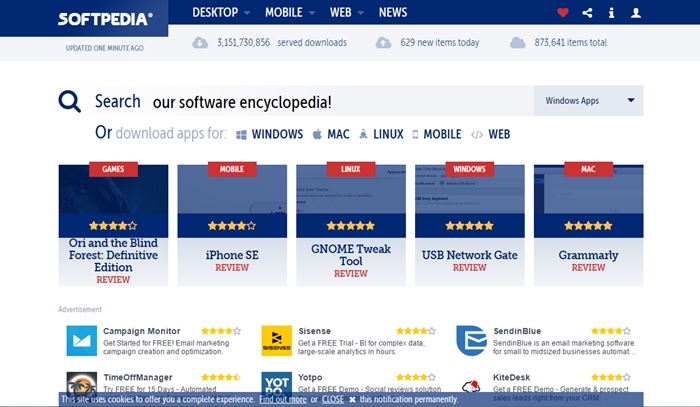
Softpedia is also one of the most popular free software download sites where you have the ability to find any free and paid software that can run on multiple platforms. The best thing about Softpedia is that it provides the latest version of the software you suggest. It also gives you with software reviews and actual screenshots for all used software. Do try it, as this is one of the best website.


3. SnapFiles


Websites for Downloading Windows Software

Yet, SnapFiles ia another one free download site that doesn’t bother about any crapware. It provides you the different categories where you can easily find top 100 free software, top user favorites, top portable apps, software reviews etc. You can easily use different software categories to find your favorite one.


 4. DownloadCrew


Websites for Downloading Windows Software

Download Crew is also one of the website that provides tons of software with their small fonts and stuff on the home page. While downloading, you don’t have to bother about the custom installer crapware and even you can find software for multiple platforms like Windows, Linux, Mac OS X etc.


5. MajorGeeks


Websites for Downloading Windows Software

MajorGreeks is considered as one of the reputed site free software download even if it has outdated web design. It doesn’t bundle the actual software in any custom installers and downloading crapware. The maintenance of the site is under couple of geeks who actually test the software arising questions in them before listing them on their website.


6. FilePuma

Websites for Downloading Windows Software

Update Detector is a free application from FilePuma.com that helps keep the software on your computer up-to-date. And this application make this site the better choice to update the software for free. So must try out this site.


7. DonationCoder

Free Websites for Downloading Windows Software

The Best Freeware, Donationware, Software Reviews, Discussions, and Shareware Discounts. So must try out this site for getting the free of the software in your windows Pc and also the software you get will be genuine.


8. FileHippo


Websites for Downloading Windows Software

This is one of the best site that personally used by me. This site is having collection of all the best and popular software that you usually need in your day to day use. So must give a try to this site.


9. BrotherSoft


Websites for Downloading Windows Software

The biggest software directory for freeware and shareware download at brothersoft.com. Open the site and you will see the interactive interface and there search for any of the software you wish to download.


10. ComputersHopper


Websites for Downloading Windows Software

ComputerShopper.com features reviews about the latest software downloads. So must visit and download the software free in this site.